User Guide
A screenshot-led walkthrough of every screen and workflow — logging time, reading insights, running the project board, processing procurement documents, and searching in plain language.
Contents
01Logging time
The home screen. One line of grammar logs a check-in.
Type a check-in using the format shown above the input: <number> [hr|hrs] #<tag> <activities> — for example 5.5 hrs #project-x fix login issue — then press Add. Each entry shows its tag, activity, date, and hours, with Edit and Delete on every row. The list is virtualized, so a long history stays fast to scroll.
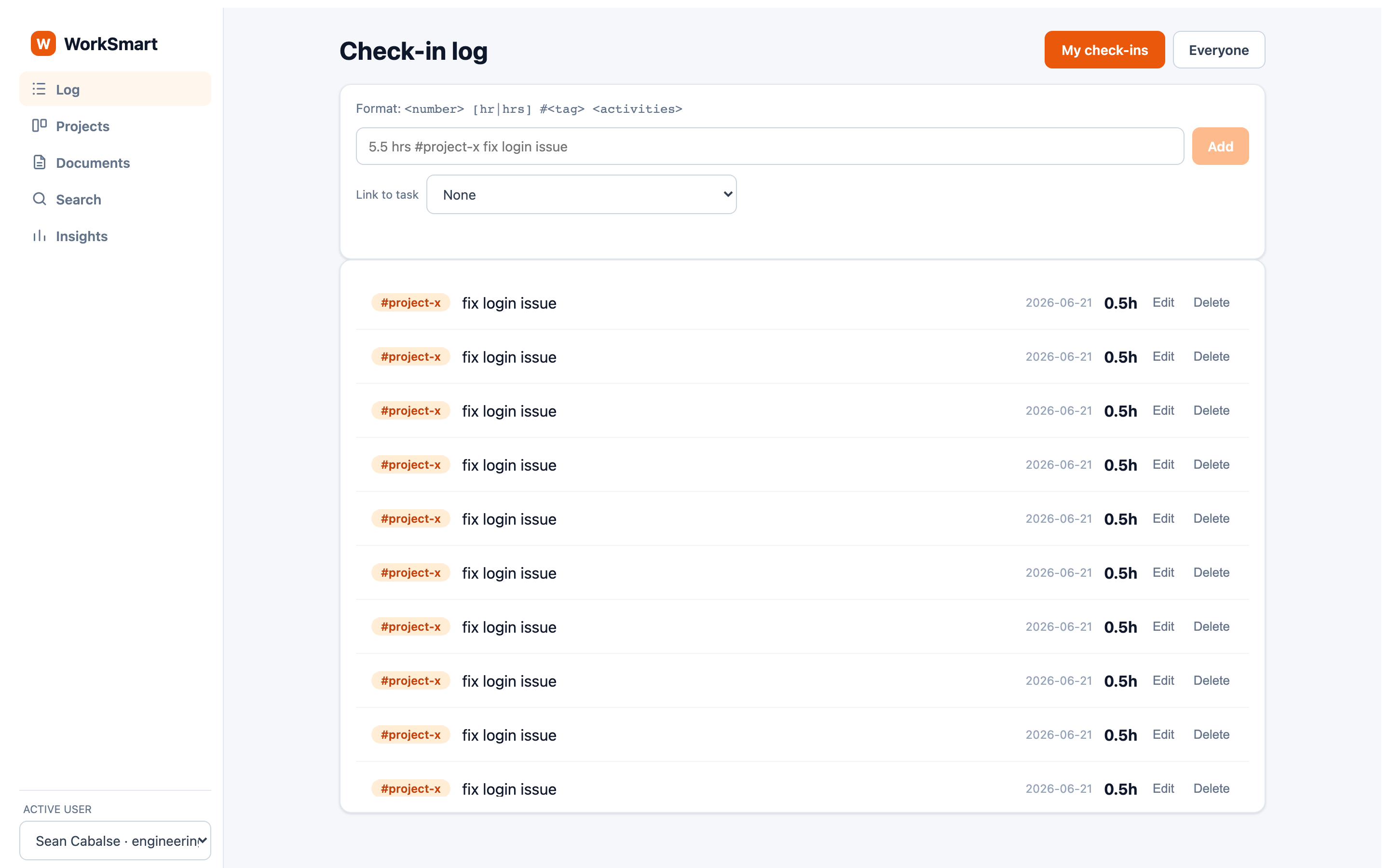
- Link to task — optionally attach the check-in to a task so its hours roll up into the project.
- My check-ins / Everyone — switch the feed between your own entries and the whole team's.
- Active user — change who you're logging as from the switcher pinned at the bottom of the sidebar.
02AI tag suggestions
Start typing without a tag and the AI proposes one.
If you describe work but haven't typed a #tag yet, WorkSmart suggests one beneath the input — for example #authentication with a confidence score. Click the chip to inject the tag; everything stays editable. The suggestion is non-blocking: it never delays typing or saving, and if the AI is unavailable it simply doesn't appear.
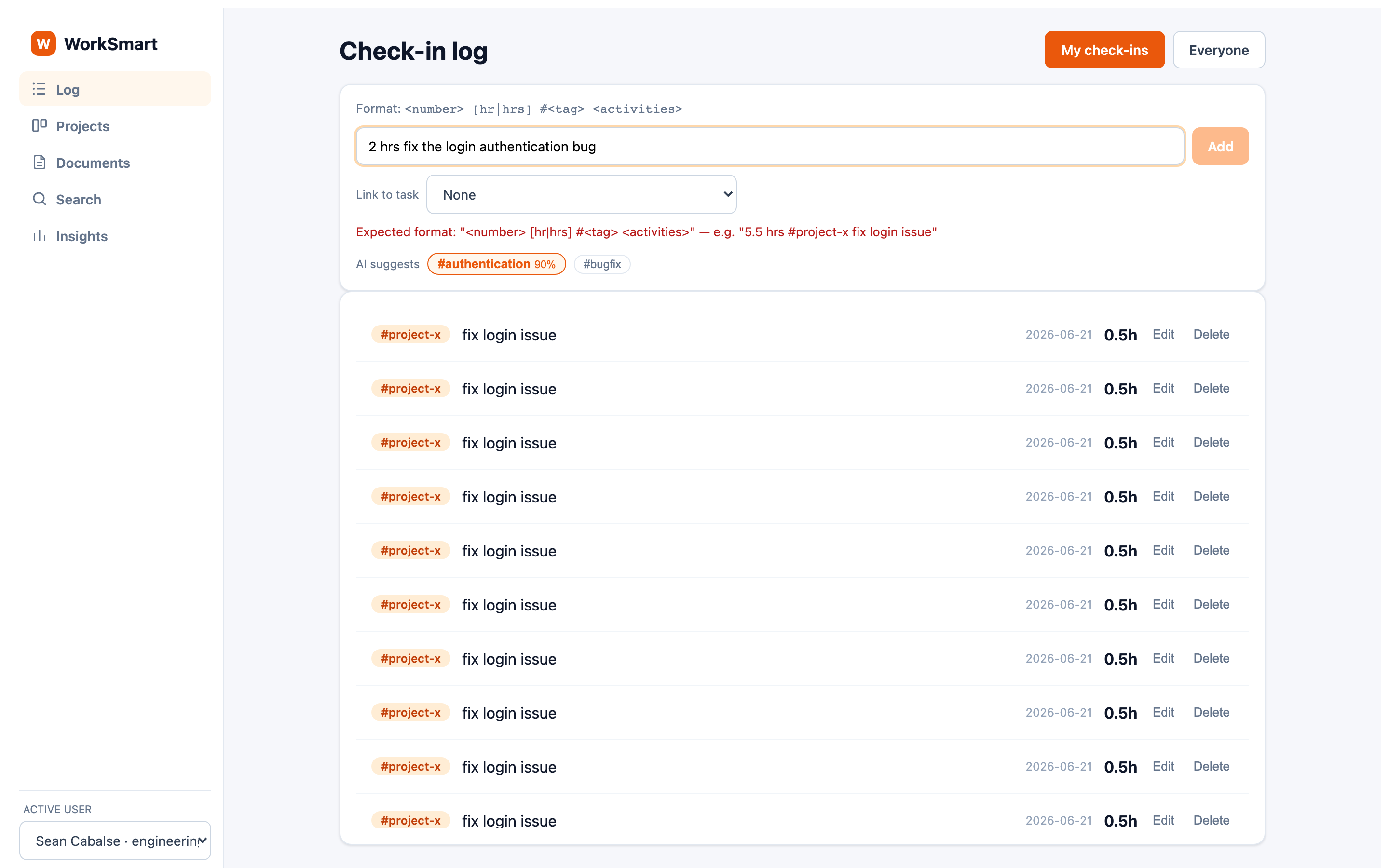
#authentication 90%" with an alternative chip. The format hint turns red until the entry parses cleanly.03Time insights
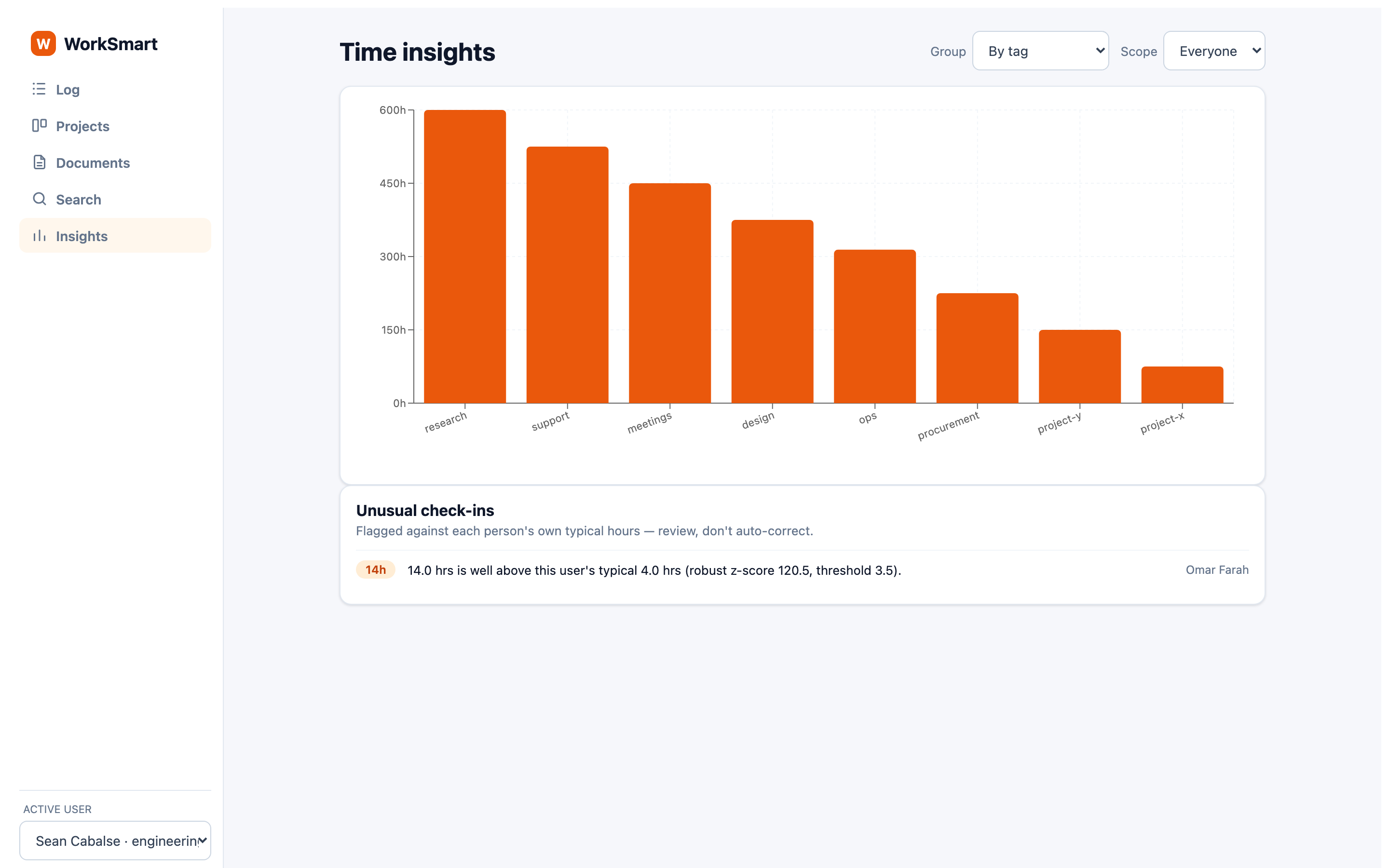
See where hours go, and which check-ins look unusual.
The Insights page charts logged hours. Use Group to break the chart down by tag, date, department, or user, and Scope to switch between your data and everyone's. Below the chart, the Unusual check-ins panel flags entries that are well outside a person's own typical hours.
04Projects
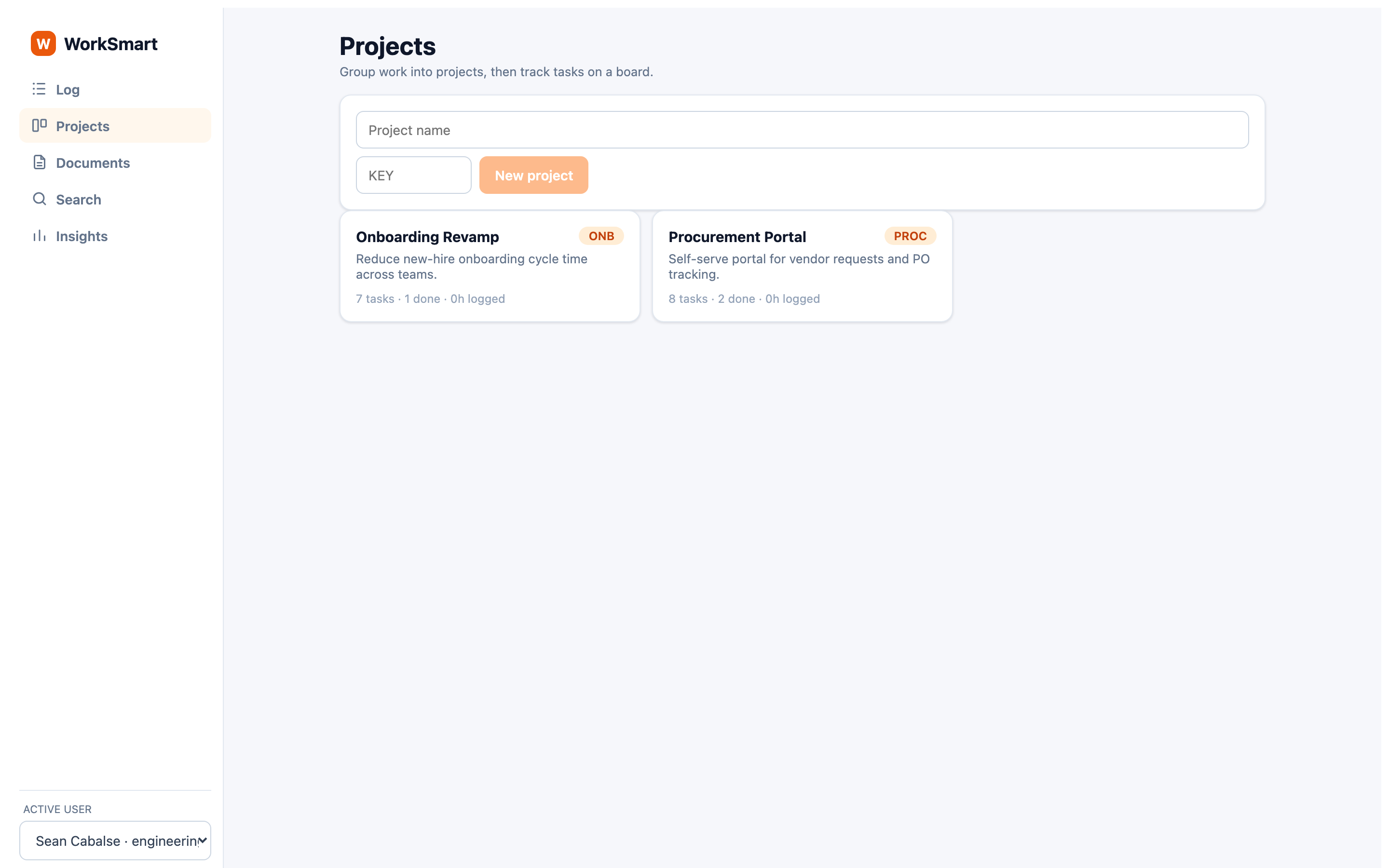
Group work into projects, then track tasks on a board.
The Projects page lists every project as a card showing its key, task count, tasks done, and hours logged. Create one by entering a name and a short KEY, then pressing New project. Click a card to open its board.
05The project board
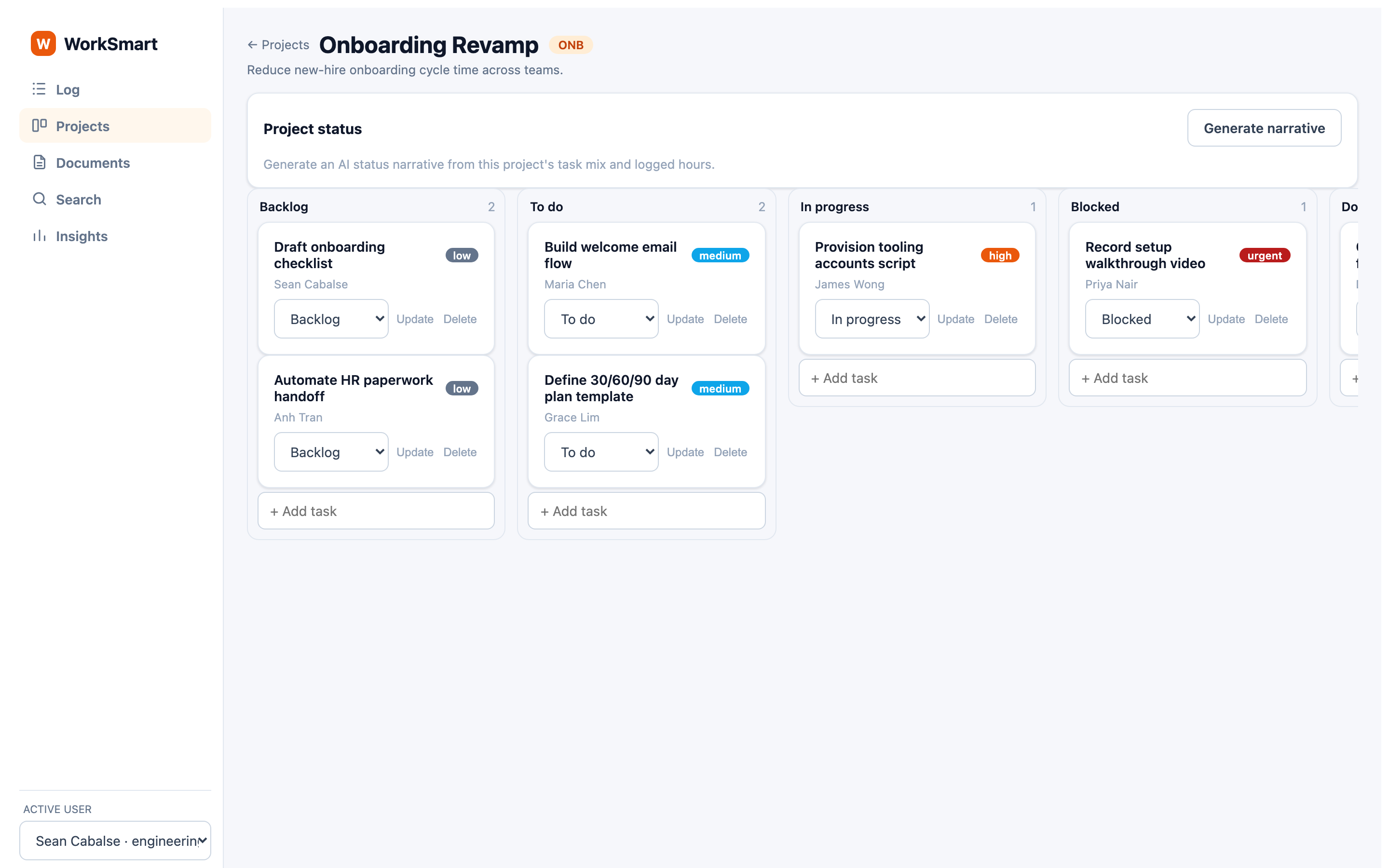
Tasks move across status columns; each card carries its owner and priority.
The board lays tasks out in columns — Backlog, To do, In progress, Blocked, Done — with a count per column. Each card shows its title, assignee, and a priority badge (low / medium / high / urgent). Change a task's status from its inline dropdown, or use + Add task at the foot of a column.
06Status narrative
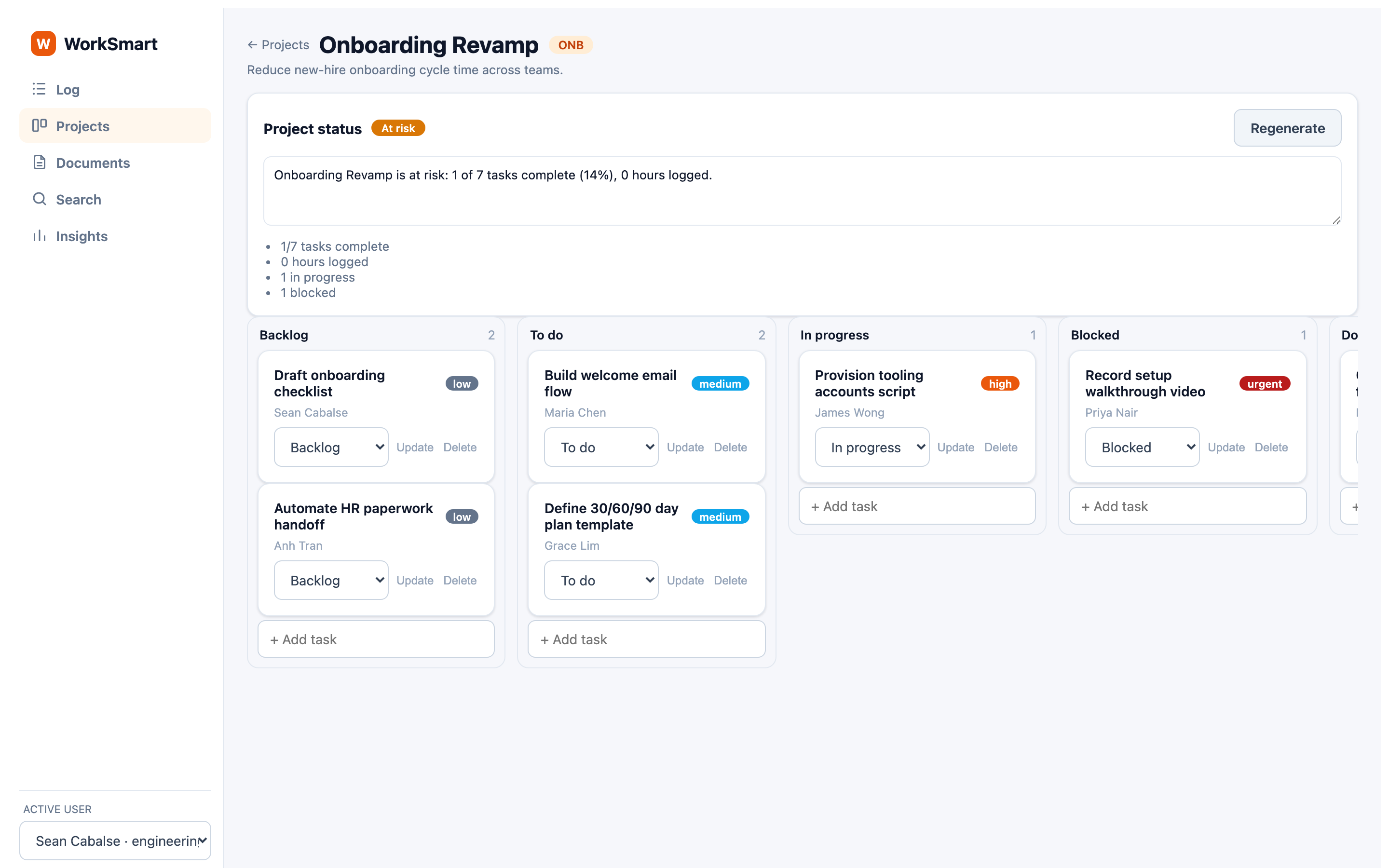
Let the AI draft a health read from the project's real signals.
Press Generate narrative in the Project status panel. WorkSmart reads the project's task mix and logged hours and drafts a summary with a health pill — On track, At risk, or Off track — plus the supporting bullets (tasks complete, hours logged, in progress, blocked). The summary is an editable textarea: the AI drafts, you own the final words. Press Regenerate for a fresh draft.
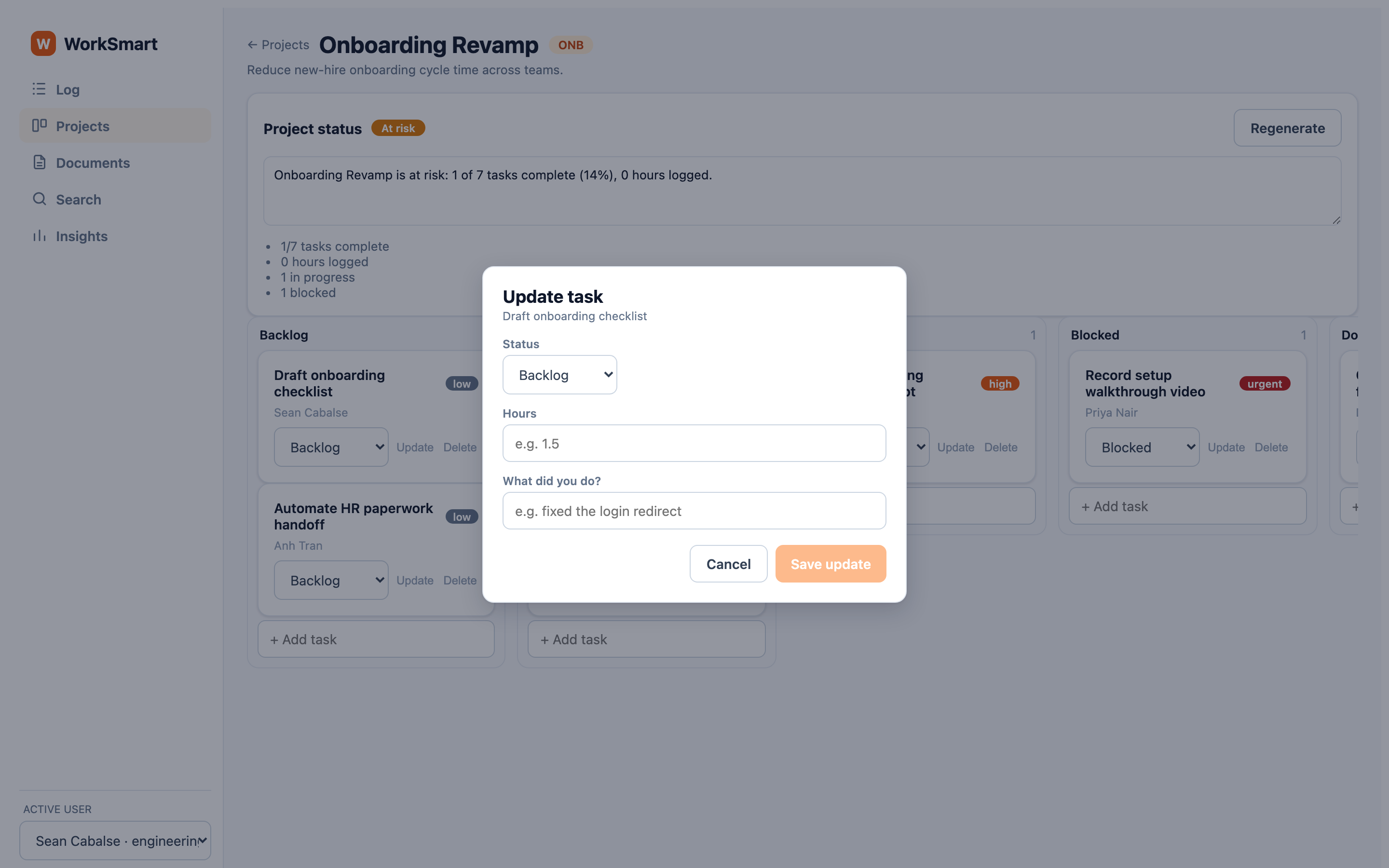
07Updating a task
Log what you did and move the task in one step.
Click Update on any card to open the update modal. Set a new Status, enter Hours, and describe What did you do? — then Save update. The hours and description are recorded as a check-in linked to the task (tagged from the project key), so the same action both moves the task and rolls its hours into the project total.
08Documents
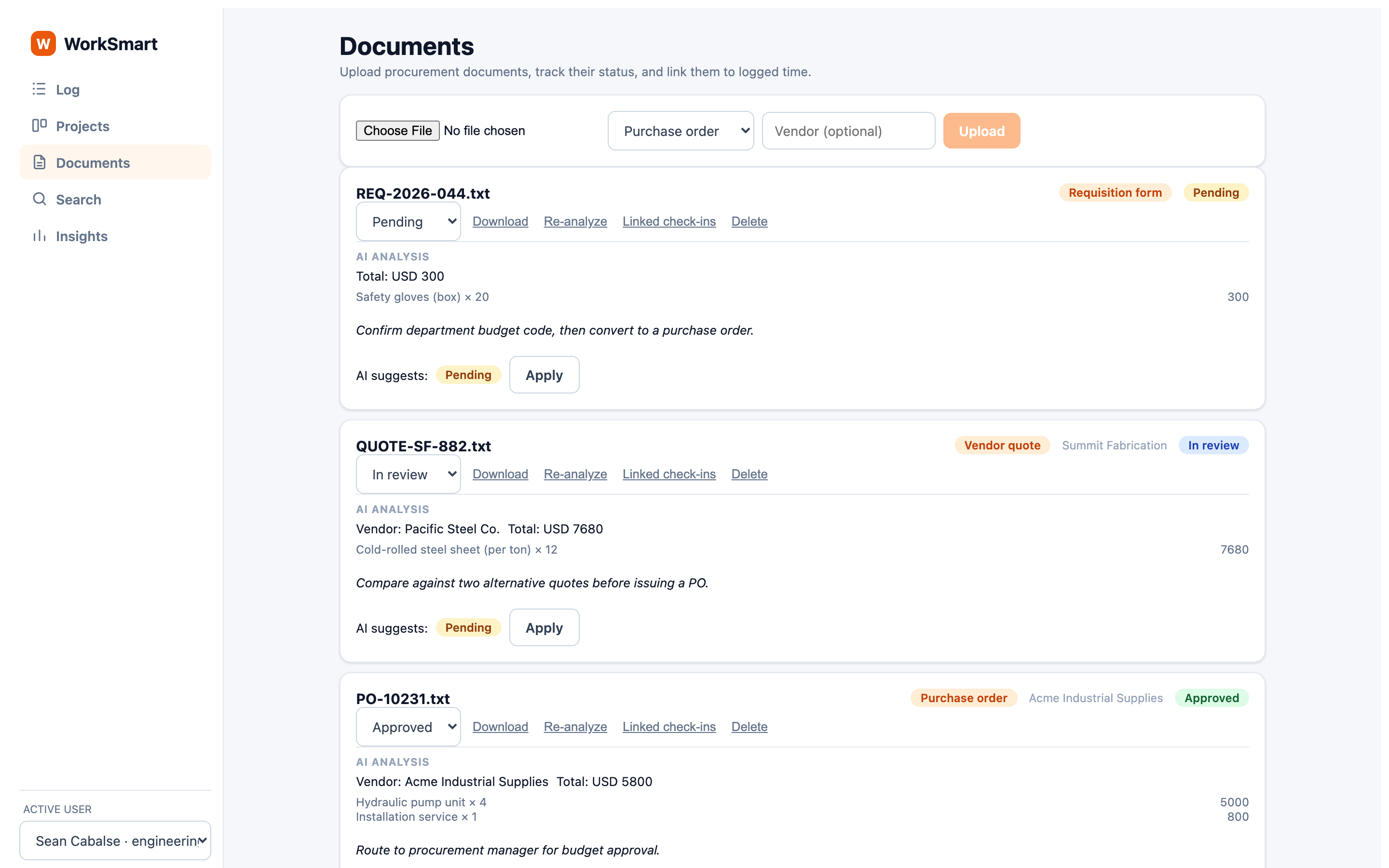
Upload procurement documents, track their status, and let the AI read them.
On the Documents page, choose a file, pick its type (purchase order, vendor quote, requisition, other), optionally add a vendor, and press Upload — the file goes straight to storage. Each document shows a status dropdown (Pending → In review → Approved / Rejected) with Download, Re-analyze, Linked check-ins, and Delete.
Under AI Analysis, WorkSmart shows the extracted vendor, total, and line items, plus a suggested next step. When the AI suggests a status, an Apply button moves the document there — you confirm the change.
09Search
Ask in plain language; confirm how the AI read it.
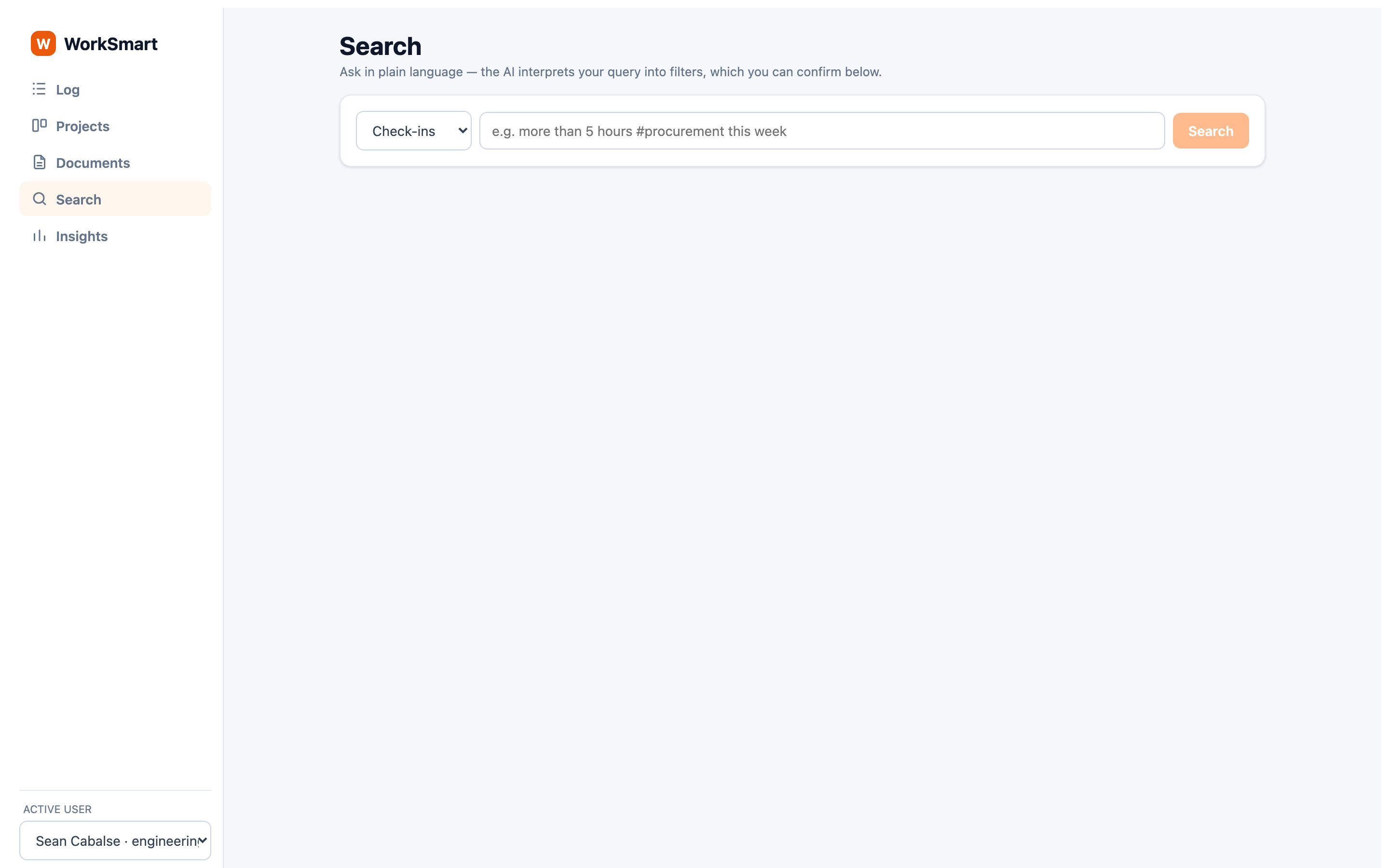
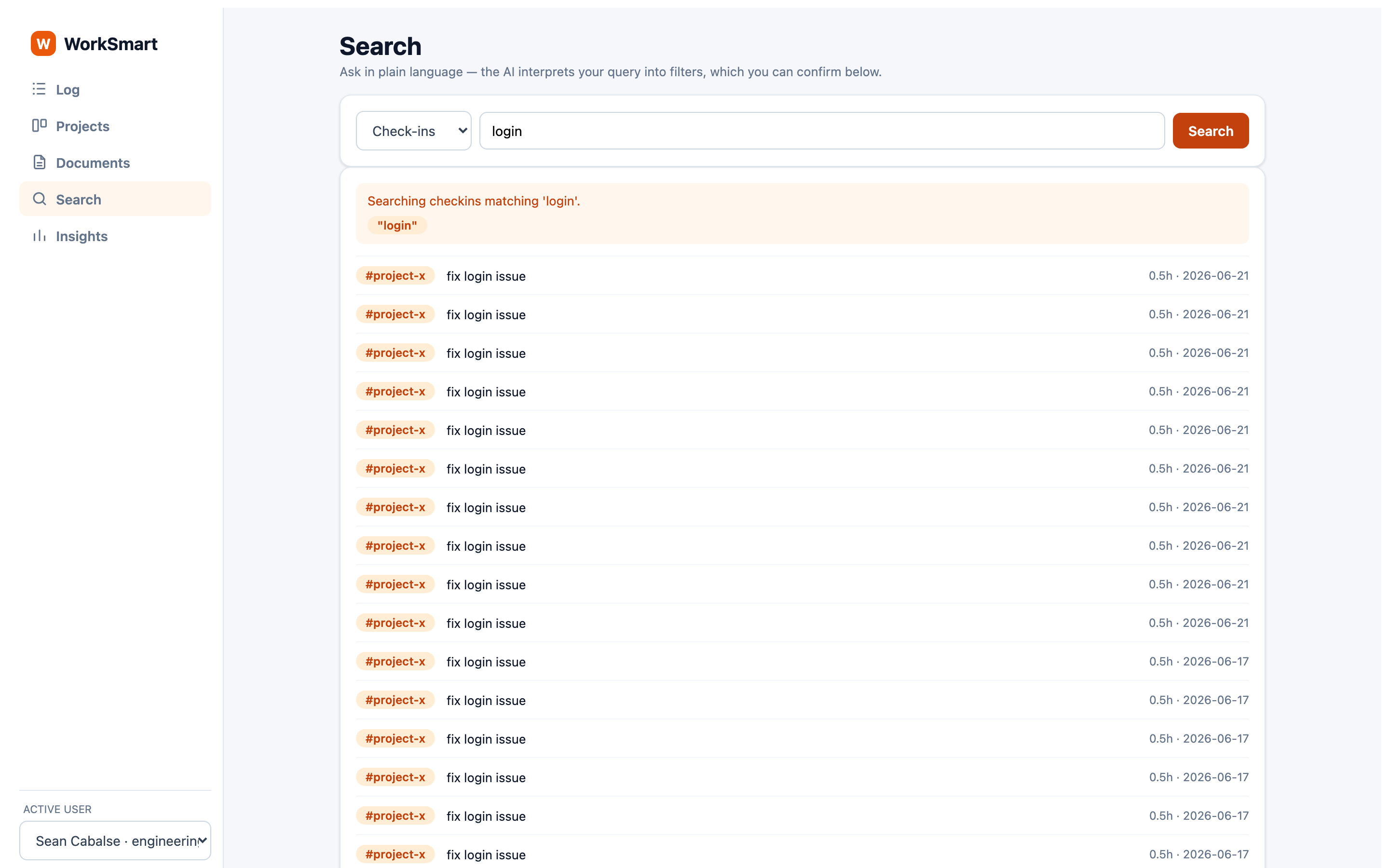
Pick a scope (Check-ins or Documents), type a question like "more than 5 hours #procurement this week", and press Search. The AI parses your sentence into filters, which WorkSmart shows back to you as chips above the results — so you can see and refine exactly how it was interpreted.